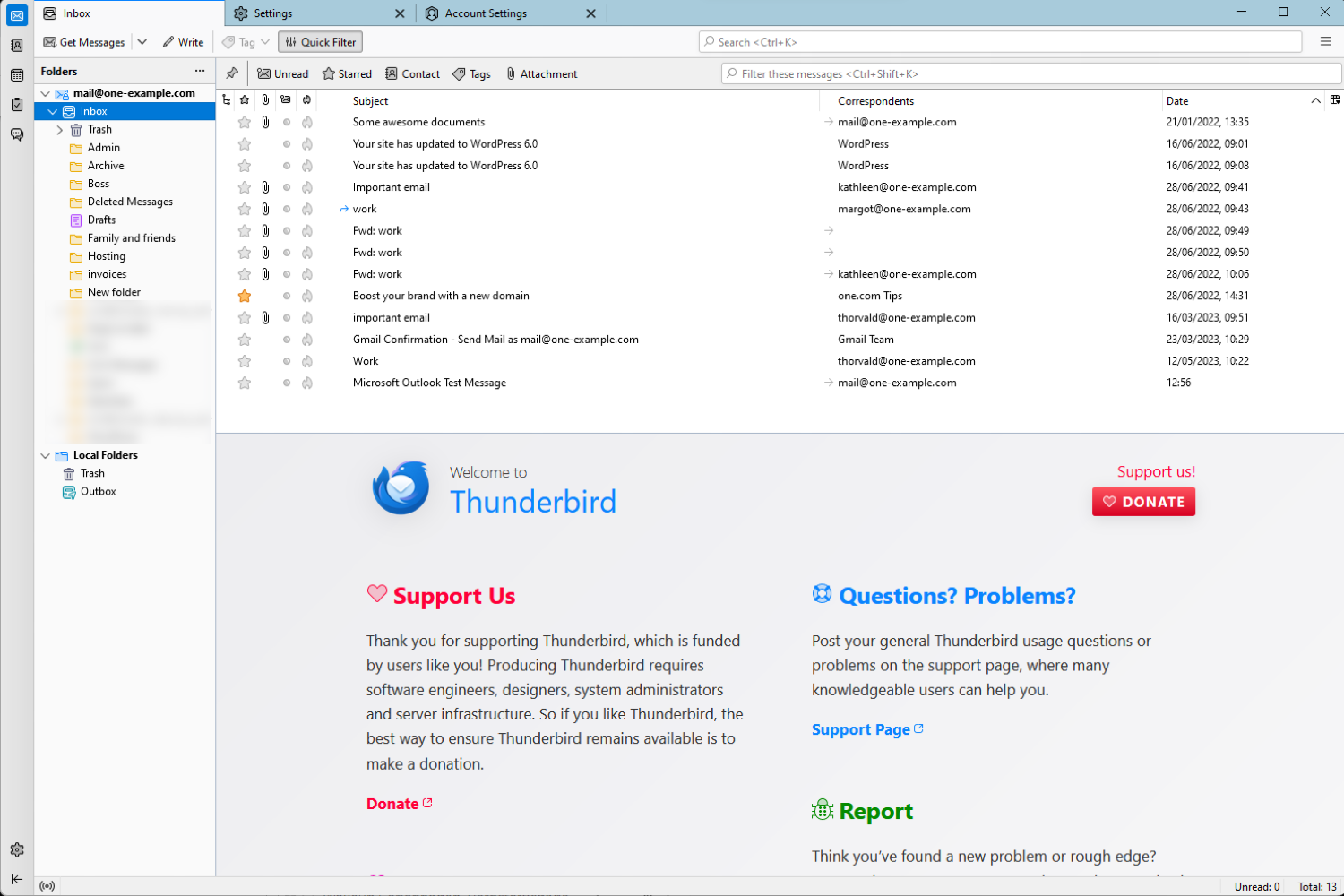


Email account setup in Thunderbird
Setting Up Email in Thunderbird for Windows
Use this step-by-step guide to set up your IMAP email account in Mozilla Thunderbird on Windows.
Click here for video illustration: Email account setup for Thunderbird
Setup Instructions
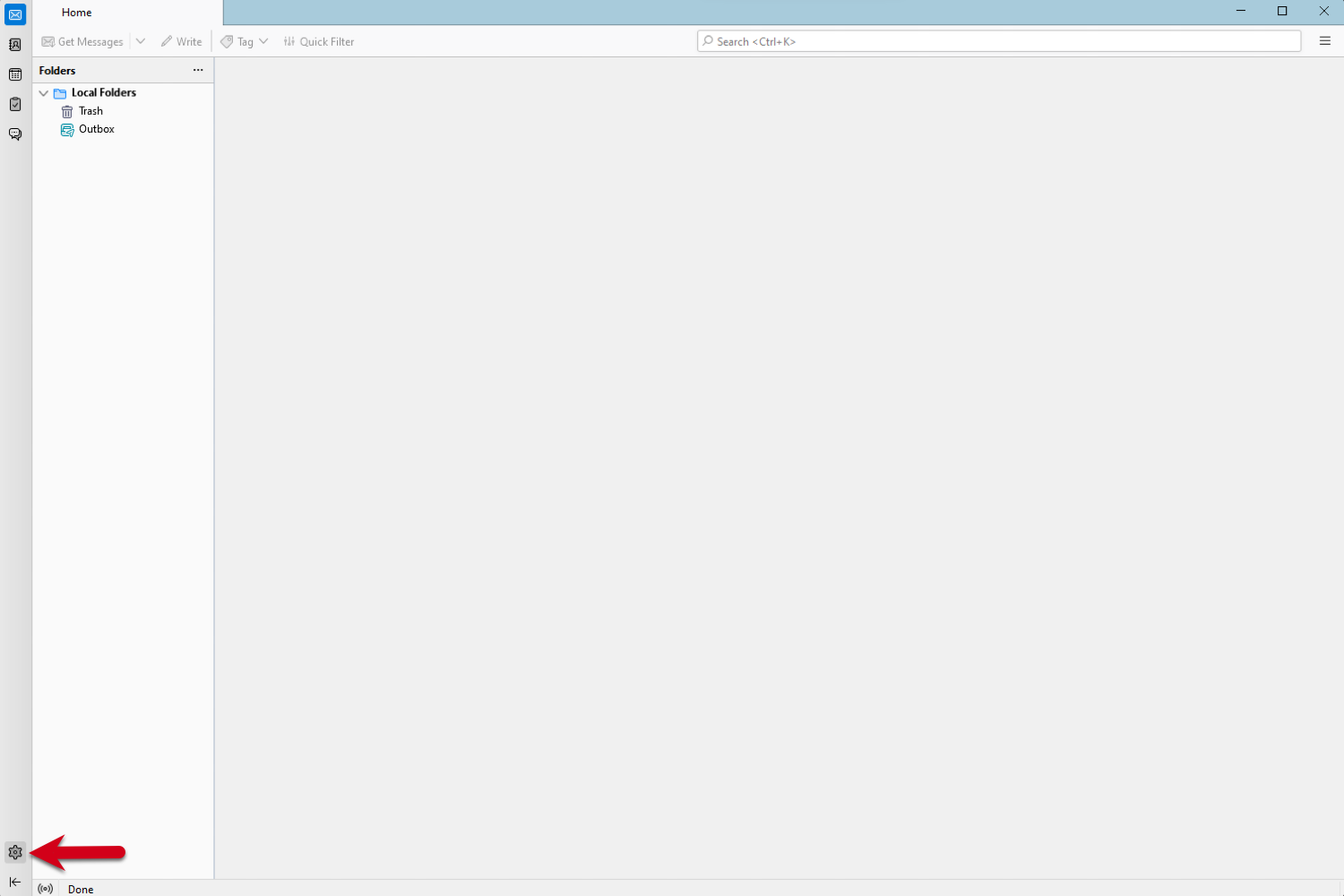
Step 1: Open Thunderbird and Click the Settings Icon
-
Launch Thunderbird.
-
Click the Settings icon (⚙️) in the bottom-left corner.
Step 2: Go to Account Settings
-
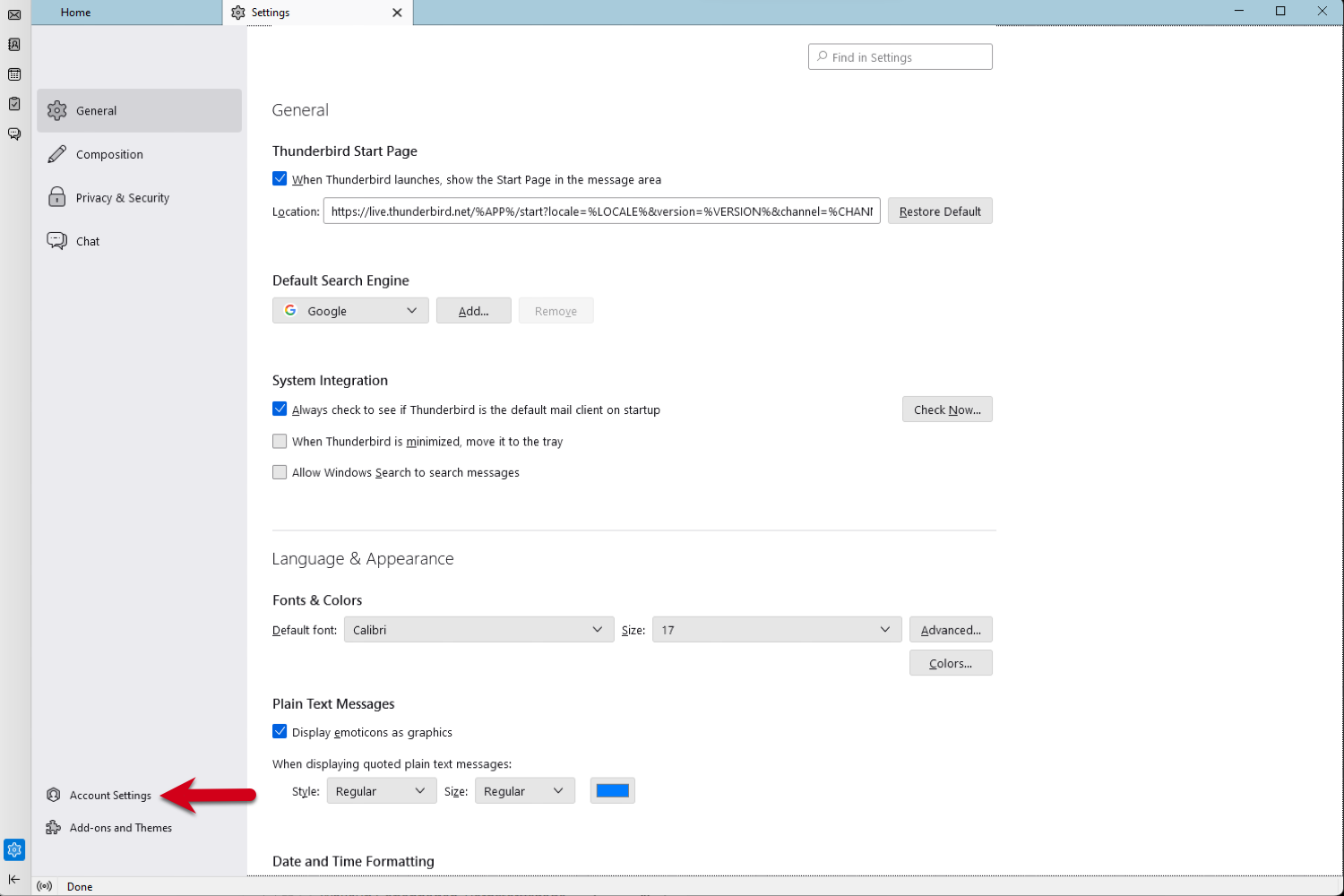
Click Account Settings from the menu.
Step 3: Add a New Mail Account
-
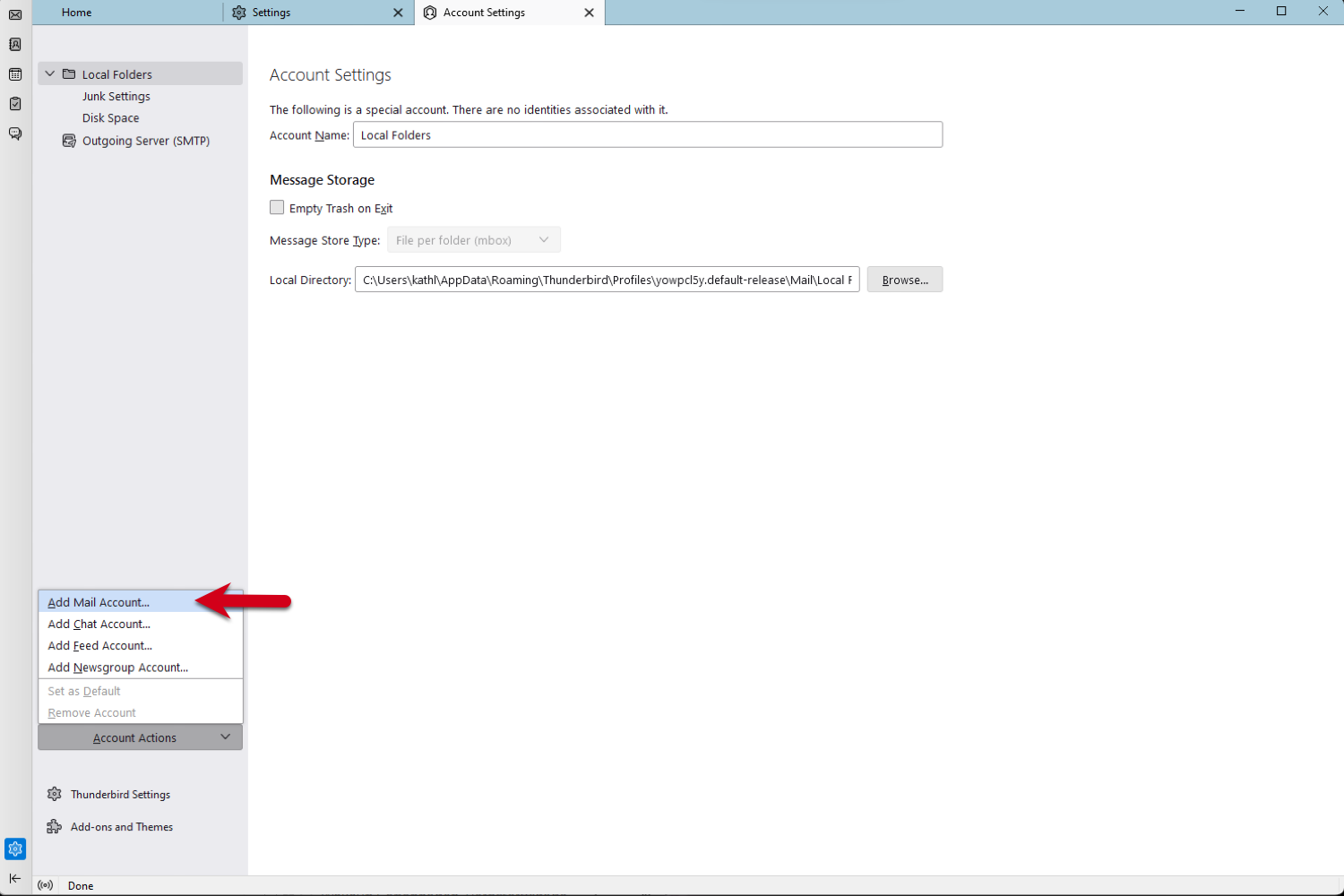
At the bottom of the left panel, click Account Actions.
-
Select Add Mail Account...
Step 4: Enter Your Account Information
-
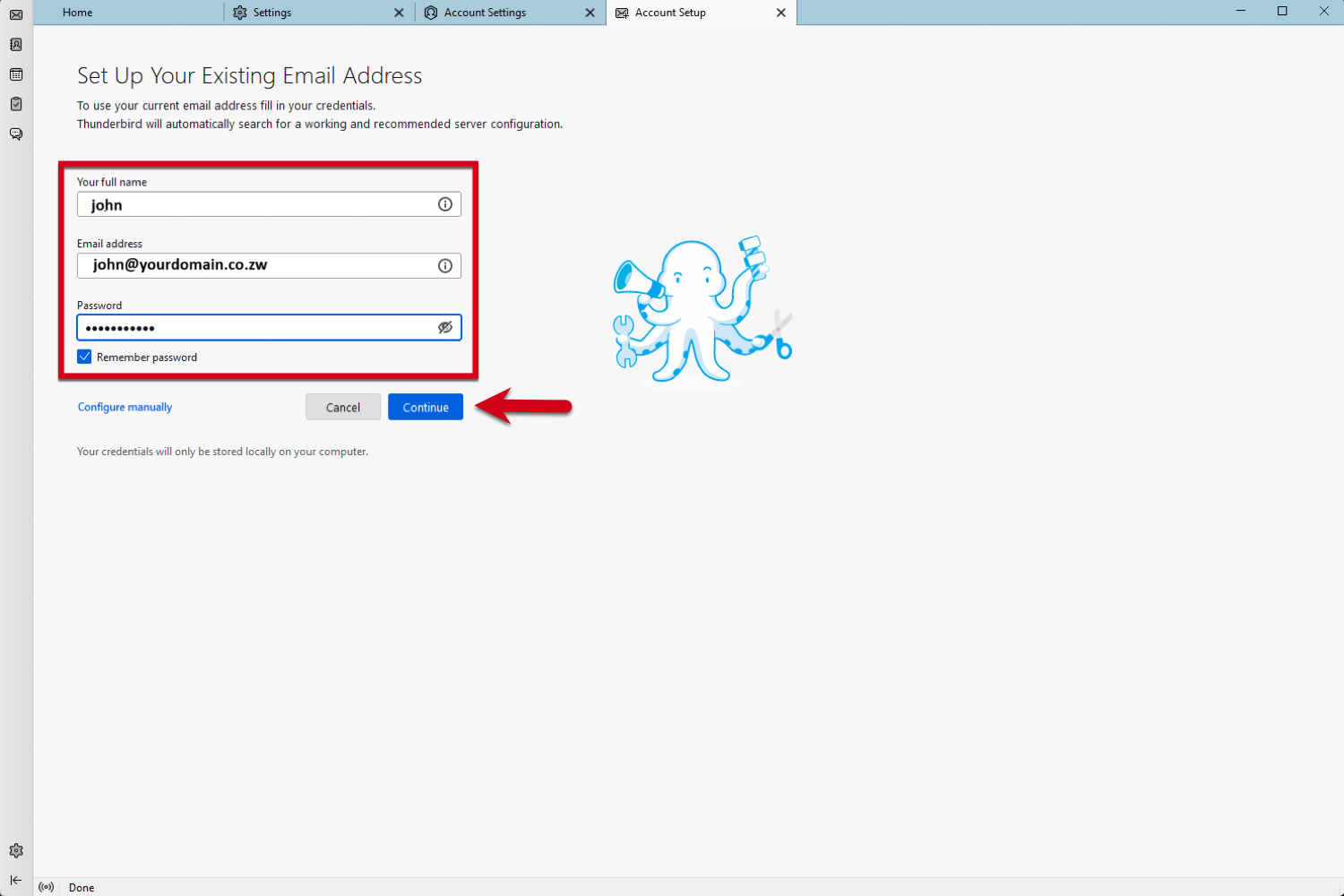
Fill in the following:
-
Your Name – This is what recipients will see.
-
Email Address – e.g.,
yourname@yourdomain.co.zw -
Password – The password for your email
-
-
Check the box Remember password.
-
Click Continue.
Step 5: Review Auto-Detected Settings
-
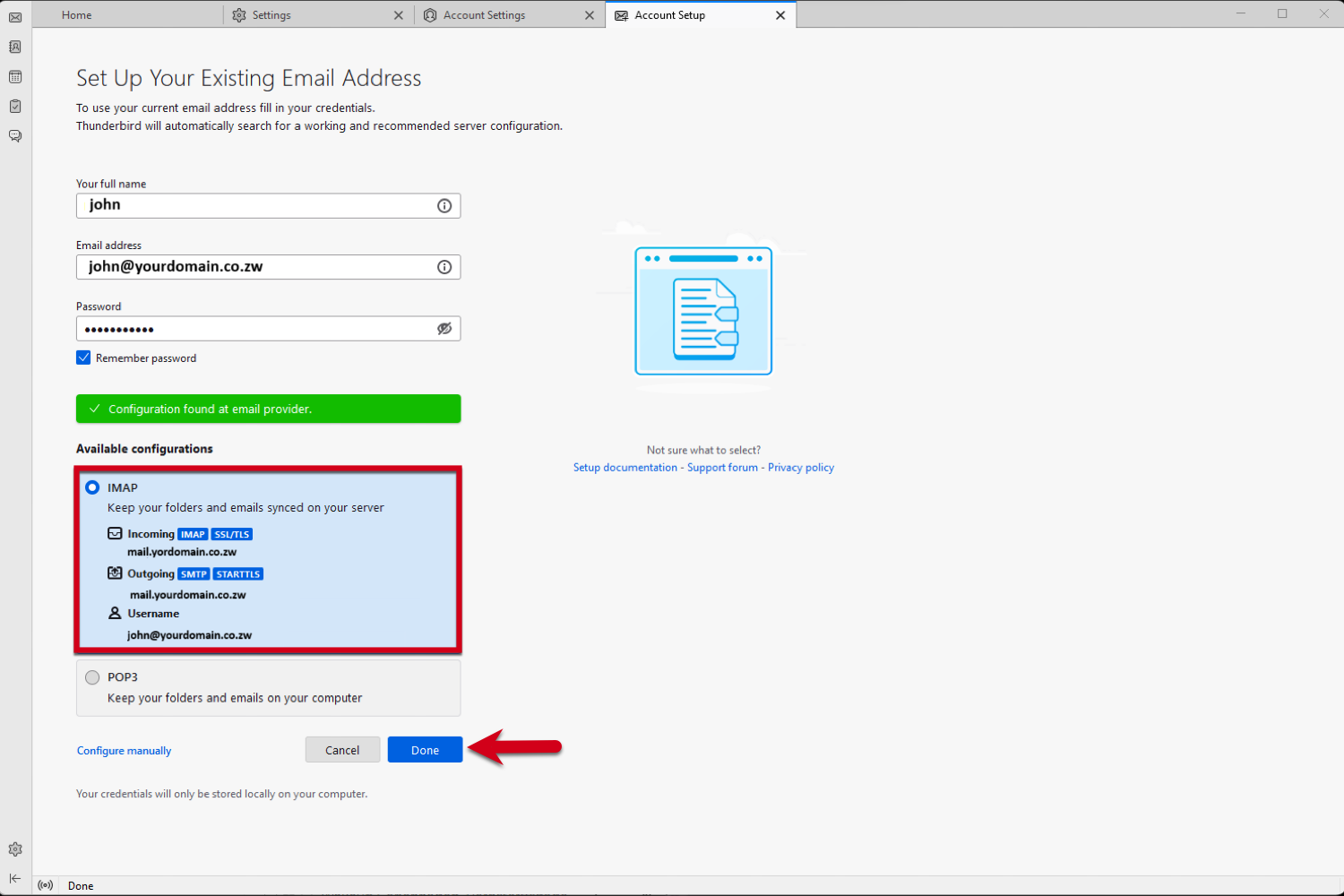
Thunderbird may automatically detect your settings.
-
If correct, click Done and start using your email.
⚠️ If it fails to detect or the settings are incorrect, click Configure manually and follow the next step.
Step 6: Manual Configuration
Incoming Server (IMAP)
-
Protocol: IMAP
-
Server:
mail.yourdomain.co.zw -
Port:
993 -
Connection security: SSL/TLS
-
Authentication: Normal password
-
Username: Your full email address
Outgoing Server (SMTP)
-
Server:
-
Port: 465
Connection security: SSL/TLS -
Authentication: Normal password
-
Username: Your full email address
Once entered, click Done.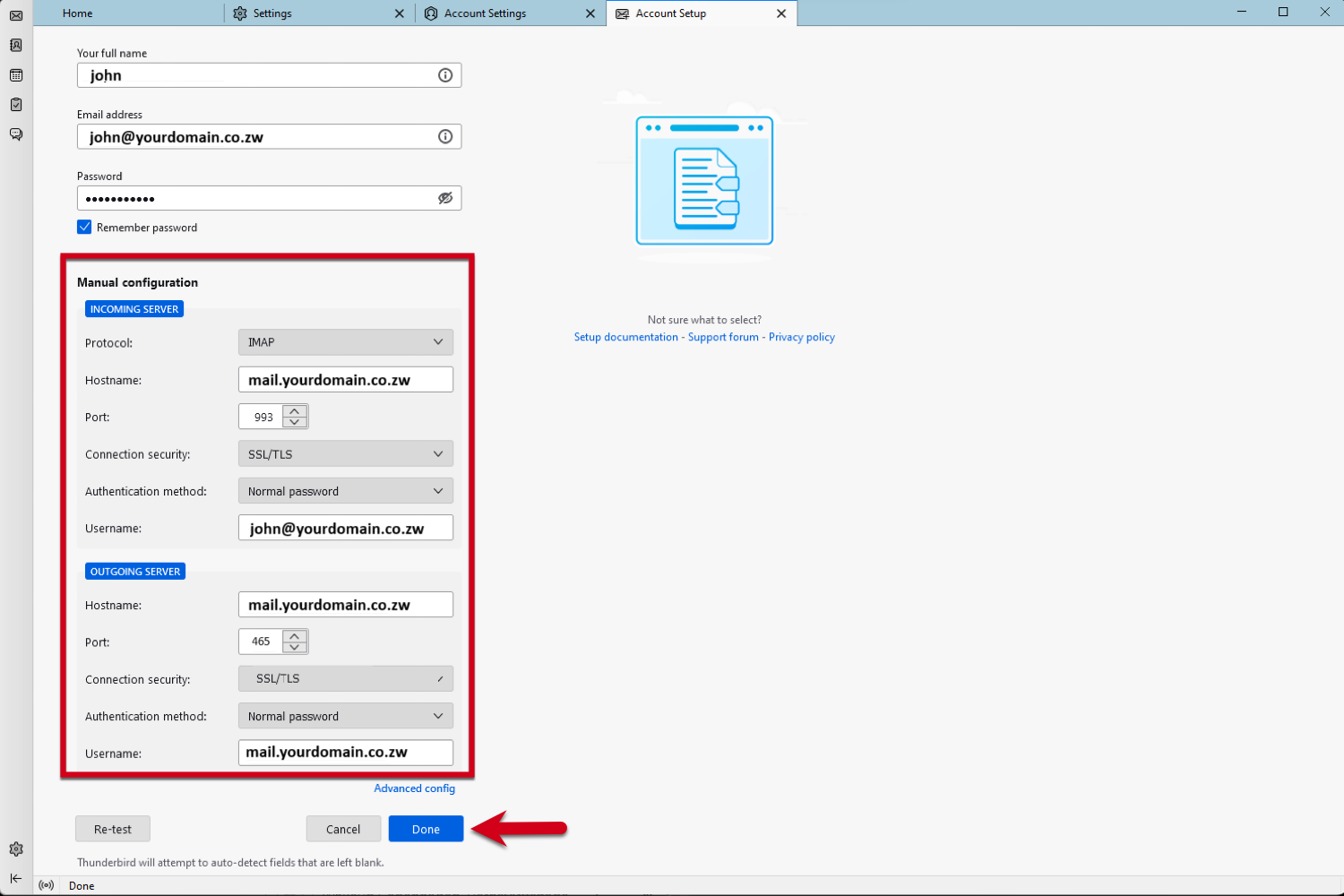
Step 7: Click Finish
-
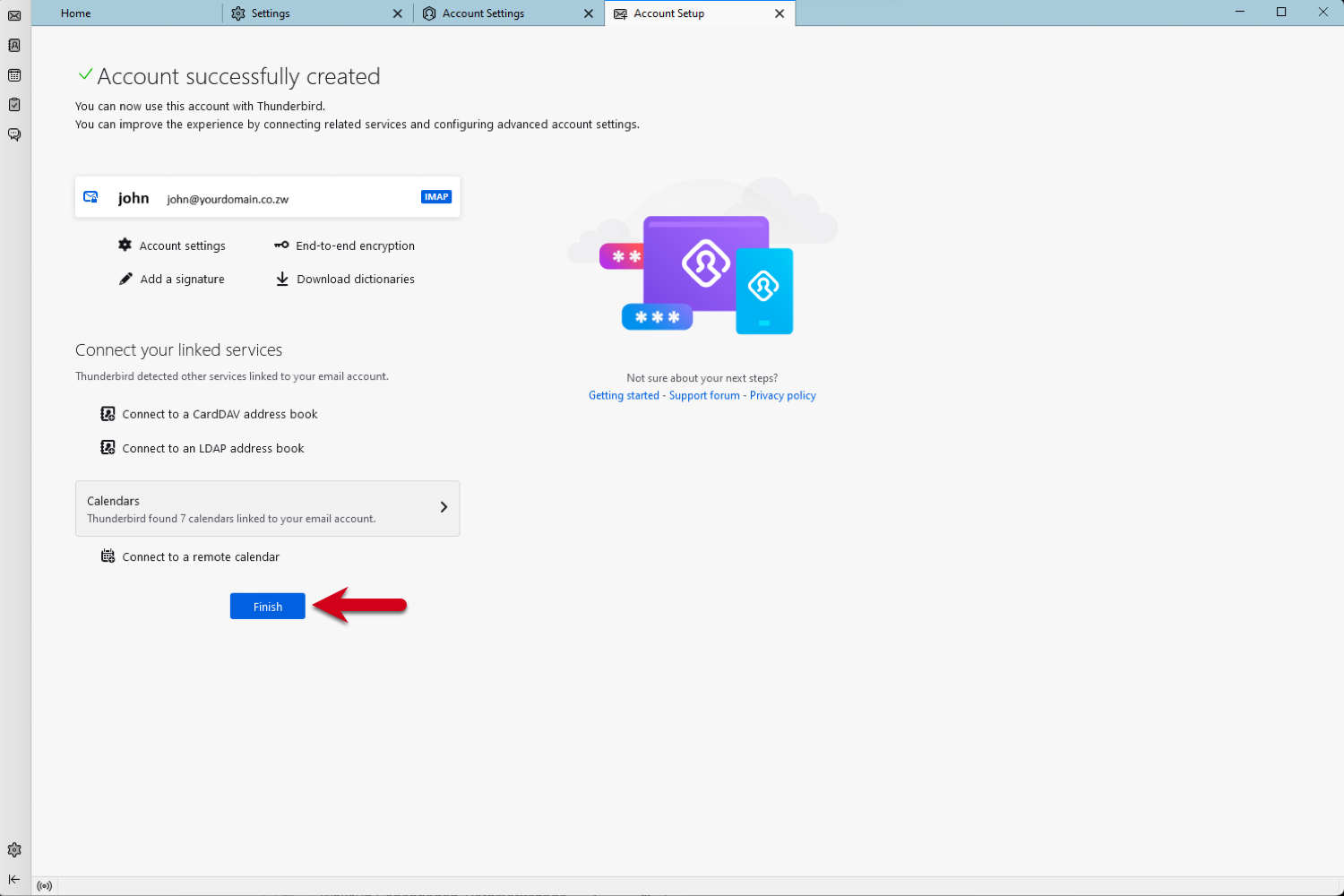
Click Finish to complete the setup.
✅ Step 8: All Set!